Bring your Anki decks and review history
Export a deck from Anki as an .apkg or .colpkg file and upload it to Schwanki. Cards, scheduling state, review history, suspended cards, pictures and audio come across when the export includes scheduling information and media. Schwanki never asks for your AnkiWeb login.
Start free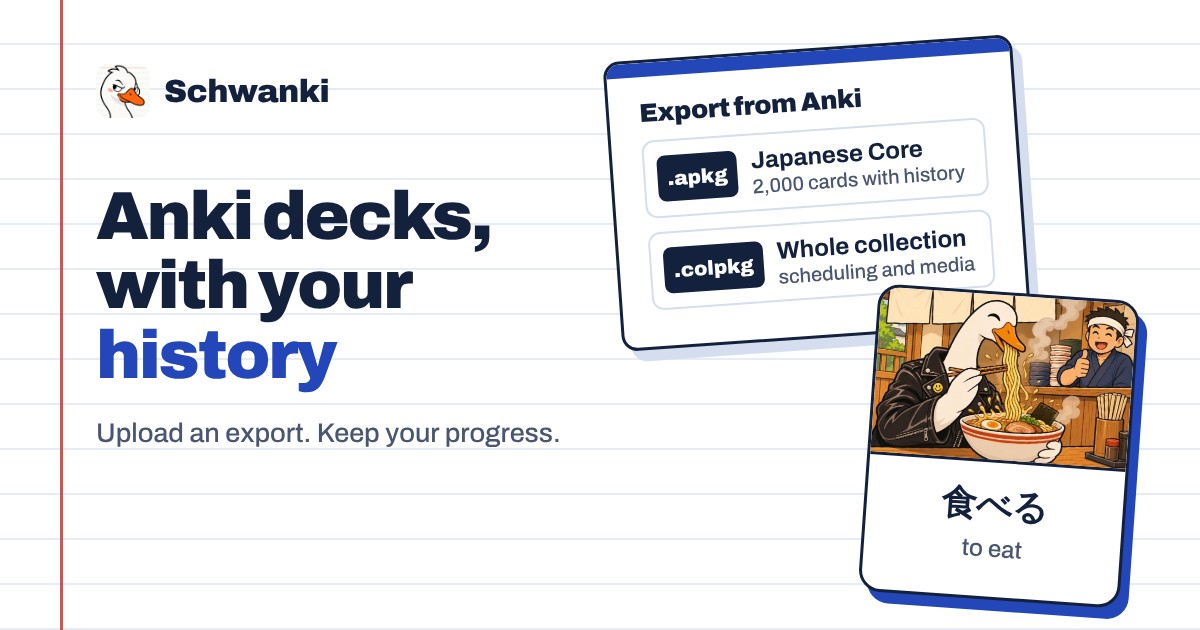
How to set it up
- Export from Anki. In Anki, export the deck as an Anki Deck Package (.apkg), or your whole collection as .colpkg. Tick Include scheduling information and Include media.
- Upload the file. In Schwanki, go to Decks & notes and choose the Anki import. Pick the .apkg or .colpkg file from your computer or phone.
- Wait for the import. Schwanki copies the cards, their media and their history into your account. Large decks take longer.
- Review what’s due. Your due cards appear in the feed. FSRS v5 picks up from the history you imported, so nothing starts from zero.
Good to know
What comes across
Cards, scheduling state, review history, suspended cards, pictures and audio. A file exported without scheduling information brings the cards but not your progress.
Where the file can come from
Anki Desktop, AnkiMobile on iPhone and iPad, and AnkiDroid all export files Schwanki reads.
Your Anki collection stays put
Importing copies the deck. Nothing changes in Anki, and Schwanki doesn’t write reviews back to it.
Common questions
Do I need to log in to AnkiWeb?
No. You upload an export file. Schwanki never sees your AnkiWeb account or password.
Will my review progress reset?
Not if the export includes scheduling information. Tick that box when you export and your intervals and history come along.
Is importing Anki decks free?
Yes. Decks, reviews and Anki imports are free, with no card limit.