Use Schwanki from any AI app
Schwanki runs a remote MCP server at schwankiapp.com/mcp. Add it to any AI app that supports remote MCP connectors, sign in to Schwanki once, and the assistant can read your decks and save new flashcards from what you practiced.
Start free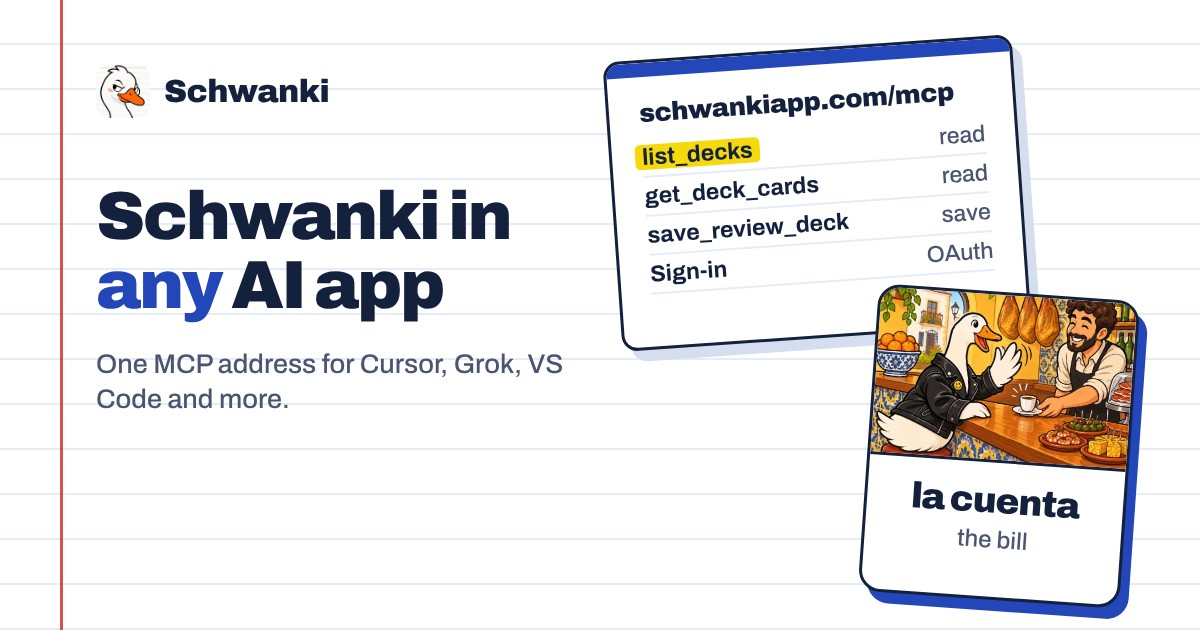
How to set it up
- Find your app’s connector setting. Look for MCP servers, connectors or tools in your AI app’s settings. In Grok it’s grok.com/connectors, then New Connector and Custom.
- Add the server address. Paste the address below. If the app asks for a transport, choose Streamable HTTP. Leave the client ID empty; the app registers itself.
- Sign in to Schwanki. The app opens Schwanki’s sign-in page. Sign in, check the app’s name, and choose Connect.
- Ask for what you need. Ask the assistant to save the words you practiced as a deck, or to quiz you on a deck you already have.
Good to know
Server address
Use this URL in any MCP client.
https://schwankiapp.com/mcpTools
list_decks shows your decks with card counts and what’s due. get_deck_cards reads a deck’s cards and review progress. save_review_deck saves 1 to 24 new cards in one language and skips ones you already have.
Sign-in
OAuth 2.1 with automatic client registration. You approve each app separately, and the approval page names the app asking.
What apps can’t do
Connected apps can’t edit or delete your decks, cards or review history.
Example prompts
“Save the Spanish phrases from this chat to Schwanki.” “Which of my Schwanki decks has the most cards due?” “Quiz me on my Japanese deck.”
Common questions
Which apps work?
Any app that supports remote MCP servers with OAuth sign-in, including Claude, Cursor, Grok, VS Code and ChatGPT developer mode.
Do I need an API key?
No. You sign in with your Schwanki account. There’s nothing to copy except the server address.
How do I disconnect an app?
Remove the connector in the AI app. To cut off an app from Schwanki’s side, contact support and we’ll revoke it.