Turn Google Docs and Sheets into flashcards
Many tutors keep a running Google Doc or Sheet of lesson vocabulary. Choose that file in Schwanki and it suggests cards from the words inside. When your tutor adds lines after the next class, sync the source to pull in the new words.
Start free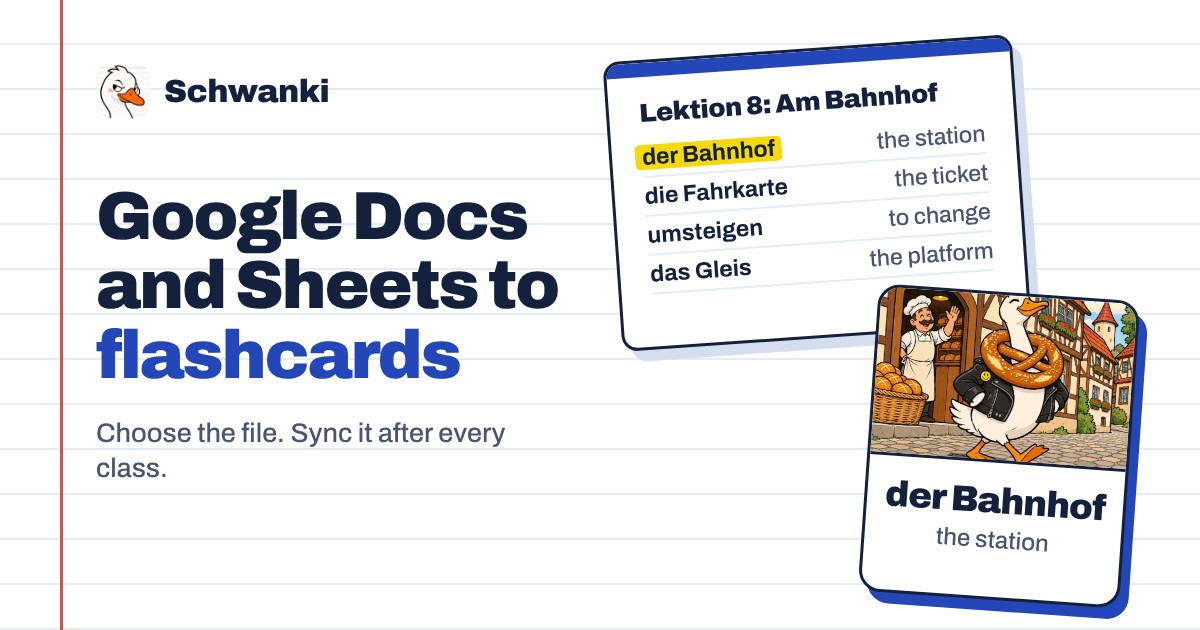
How to set it up
- Open Add source. In Schwanki, go to Decks & notes and choose Add source. The first tab is Google Doc or Sheet.
- Choose the file. Choose from Google Drive. The first time, Google asks whether Schwanki may open files you pick. Then Google’s own file picker opens and you select the doc or sheet.
- Say whose notes they are. Add your teacher’s name and the language you’re learning, so the cards land in the right deck.
- Approve the words. The words Schwanki found wait in your Inbox. Keep, correct or skip each one.
- Sync after class. When the file changes, choose Sync now on that source, or Sync all. Schwanki reads the new lines and suggests cards for them.
Good to know
What Schwanki can see
Only the files you choose in Google’s picker. Schwanki can’t browse or read the rest of your Google Drive.
Signing in is separate
Signing in to Schwanki with Google shares your name and email only. Access to a file is asked for later, the first time you choose one.
Other files from class
For a PDF, PowerPoint or screenshot, use the PDF, slides or screenshot tab in the same window.
Common questions
Can Schwanki read my whole Google Drive?
No. Schwanki uses Google’s file picker, so it can open only the documents and sheets you select there.
What happens when my tutor updates the document?
Choose Sync now on the source. Schwanki reads the new lines and suggests cards for them. Cards you already approved stay as they are.
Does it cost anything?
Reading the first 10 documents a day is free. AI pictures and audio for cards are optional and use credits.