Save flashcards from Cursor
Cursor connects to remote MCP servers. Add Schwanki’s address to your MCP settings, sign in once, and ask Cursor’s agent to turn a lesson transcript, a document or the words you’re practicing into a Schwanki deck.
Start free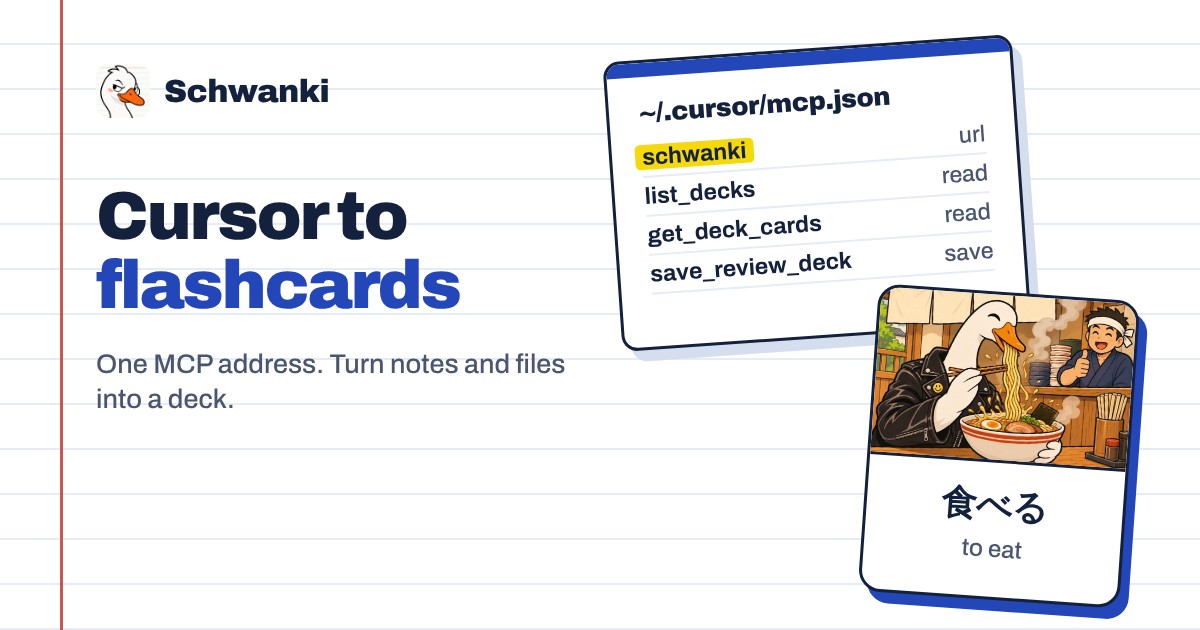
How to set it up
- Open MCP settings. In Cursor Settings, find the MCP section and add a new MCP server. Or edit ~/.cursor/mcp.json directly.
- Add the server address. Add a server named schwanki with the url below. There’s no API key; Cursor registers itself.
- Sign in to Schwanki. The first time a Schwanki tool runs, Cursor opens Schwanki’s sign-in page. Sign in, check the app’s name, and choose Connect.
- Ask for a deck. Ask the agent to save the words from a file or chat as a Schwanki deck. The reply includes a review link.
Good to know
mcp.json
Add this to ~/.cursor/mcp.json, or to .cursor/mcp.json in a project.
{ "mcpServers": { "schwanki": { "url": "https://schwankiapp.com/mcp" } } }Cursor Marketplace
A Schwanki plugin for Cursor is in review for the Cursor Marketplace. Until it’s listed, use the setup above.
What Cursor can do
Cursor can list your decks and what’s due, read a deck’s cards and review progress, and save new decks. It can’t edit or delete anything.
Example prompts
“Read lesson-notes.md and save the 20 most useful Spanish words as a Schwanki deck.” “Make a Japanese deck from the vocabulary list in this file, skipping words I already have.”
Common questions
Do I need an API key?
No. You sign in with your Schwanki account; Cursor registers itself.
Does it work in VS Code too?
Yes. Any editor with remote MCP support can use the same address. The Other AI apps page has the general steps.
Is it free?
Yes. Saving and reading decks is free. Pictures, audio and video on cards use Schwanki AI credits, and only when you ask for them.