Save flashcards from a Grok chat
Grok lets anyone add a custom MCP connector. Add Schwanki’s server address at grok.com/connectors, sign in to Schwanki, and ask Grok to save the words from your chat as a deck in your scroll feed.
Start free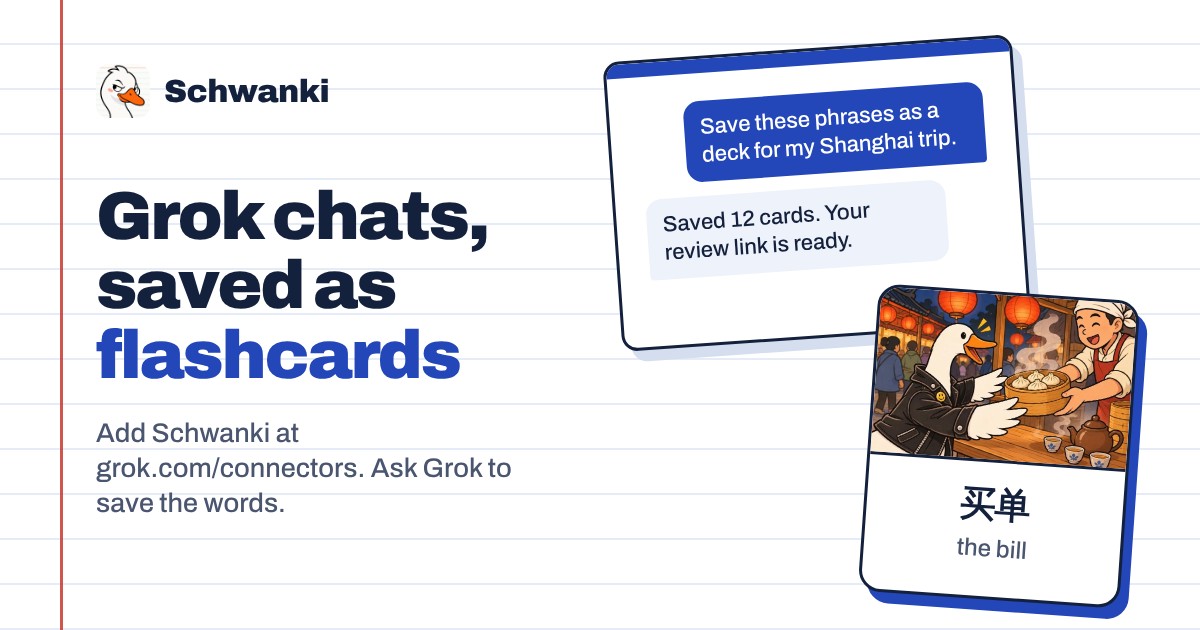
How to set it up
- Open connectors. Go to grok.com/connectors, choose New Connector, then Custom.
- Add the server address. Paste the address below and continue. Grok registers itself with Schwanki.
- Sign in to Schwanki. Grok opens Schwanki’s sign-in page. Sign in, check the app’s name, and choose Connect.
- Ask for a deck. In any chat, ask Grok to save the phrases you practiced as a Schwanki deck. The reply includes a review link.
Good to know
Server address
Paste this into Grok’s custom connector form.
https://schwankiapp.com/mcpWhere it works
Grok connectors work on grok.com and in the Grok apps for iOS and Android. On Grok Business and Enterprise, an admin adds the connector first.
What Grok can do
Grok can list your decks and what’s due, read a deck’s cards and review progress, and save new decks filed under a teacher or topic. It can’t edit or delete anything.
Example prompts
“Save the Portuguese phrases from this chat as a Schwanki deck filed under my Lisbon trip.” “Which of my Schwanki decks have cards due?” “Make me a Korean deck of 20 café phrases, skipping ones I already have.”
Common questions
Is Schwanki in Grok’s connector catalog?
No. Grok’s catalog lists a fixed set of partners, so add Schwanki as a custom connector with the steps above.
Do I need a paid Grok plan?
xAI says connectors are available to all Grok users.
Is it free?
Yes. Saving and reading decks is free. Pictures, audio and video on cards use Schwanki AI credits, and only when you ask for them.