Save flashcards from Mistral Le Chat
Mistral Le Chat connects to any remote MCP server, even on the free plan. Add Schwanki as a custom connector, sign in once, and ask Le Chat to save the words from your conversation as a deck in your scroll feed.
Start free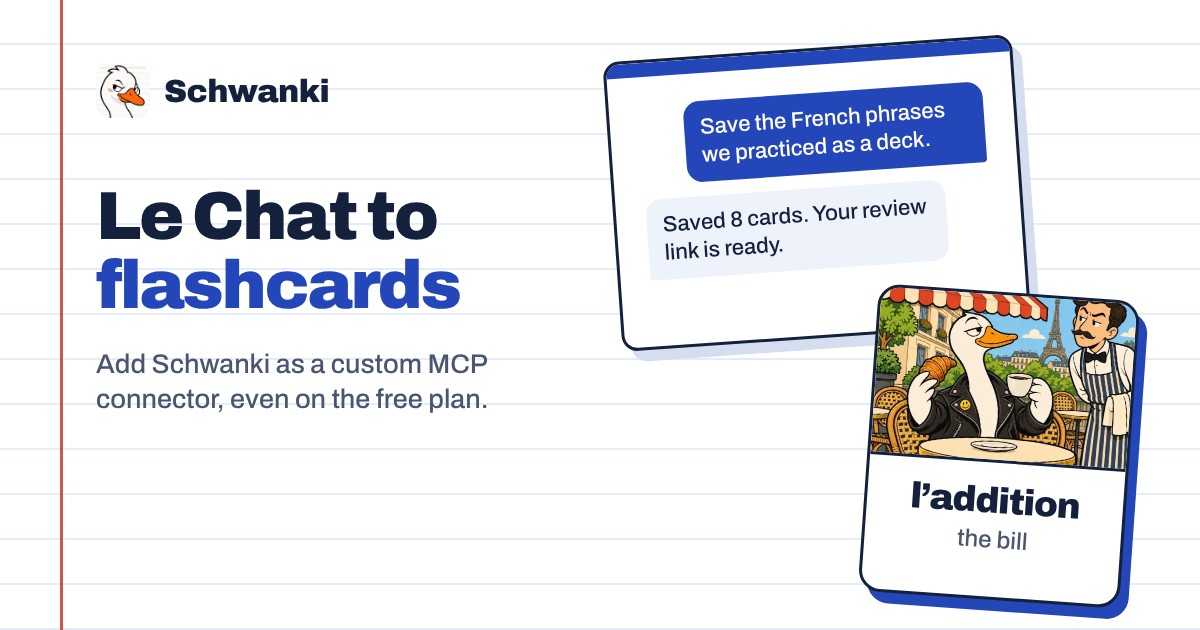
How to set it up
- Open Connectors. In Le Chat, open Connectors, choose Add Connector, then the Custom MCP Connector tab.
- Add the server address. Name it Schwanki and paste the address below. Le Chat detects the sign-in method and registers itself.
- Sign in to Schwanki. Choose Connect. Le Chat opens Schwanki’s sign-in page; sign in and approve the connection.
- Ask for a deck. Turn on the Schwanki connector in a chat and ask Le Chat to save the phrases you practiced. The reply includes a review link.
Good to know
Server address
Paste this into Le Chat’s custom connector form.
https://schwankiapp.com/mcpWho can add connectors
Adding a custom connector is an admin action. On Free, Pro and Student plans you’re the admin of your own account.
What Le Chat can do
Le Chat can list your decks and what’s due, read a deck’s cards and review progress, and save new decks. It can’t edit or delete anything.
Example prompts
“Save the French phrases we just practiced as a Schwanki deck.” “What’s due in Schwanki today?” “Make an Italian deck of 15 restaurant phrases filed under Rome trip.”
Common questions
Is Schwanki in Le Chat’s connector directory?
Not yet. Add it as a custom MCP connector with the steps above.
Does it work on the free plan?
Yes. Mistral offers custom MCP connectors on the free plan.
Is it free?
Yes. Saving and reading decks is free. Pictures, audio and video on cards use Schwanki AI credits, and only when you ask for them.