Save flashcards from Perplexity
Perplexity can connect to remote MCP servers as custom connectors. Add Schwanki’s server address with OAuth sign-in, approve the connection, and ask Perplexity to save the words from an answer as a Schwanki deck.
Start free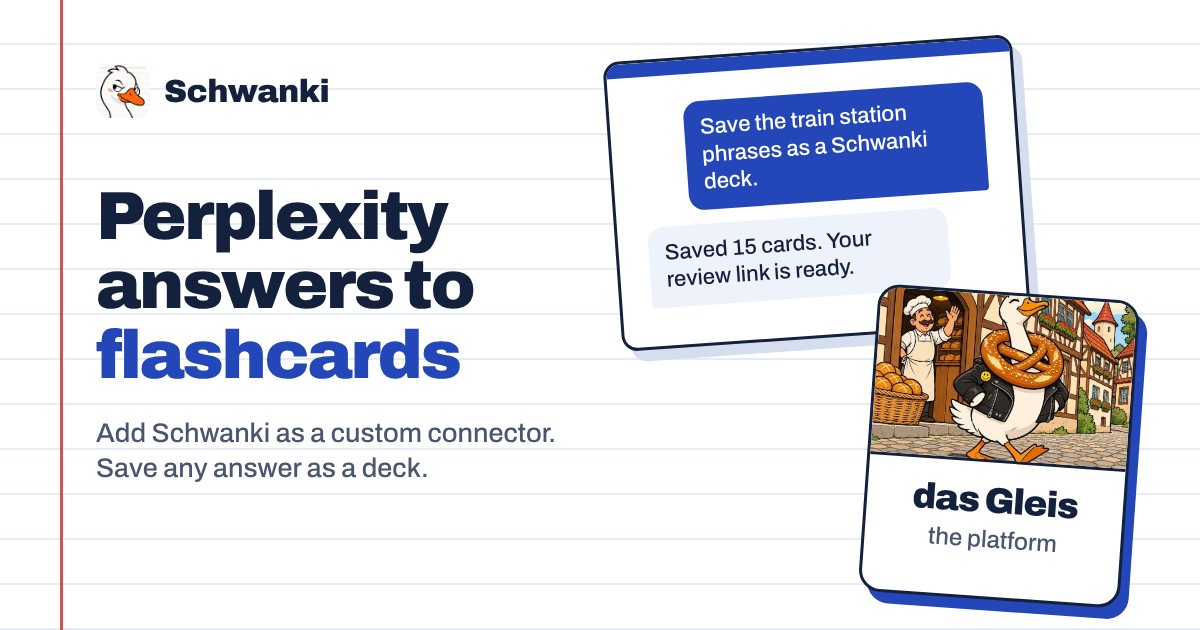
How to set it up
- Open Plugins. In Perplexity, open Plugins from the sidebar, then choose Add custom, Add MCP connector, and Remote.
- Add the server address. Name it Schwanki, paste the address below, choose OAuth as the sign-in type and Streamable HTTP as the transport. Leave the client ID and secret empty; Perplexity registers itself.
- Sign in to Schwanki. Tick the acknowledgement, choose Add, then sign in from the connector card and approve the connection.
- Ask for a deck. Ask Perplexity to save the words from an answer or your notes as a Schwanki deck. The reply includes a review link.
Good to know
Server address
Paste this into Perplexity’s custom connector form.
https://schwankiapp.com/mcpPerplexity Enterprise
Organization members can add custom connectors only after an admin turns on Allow members to add custom connectors in Organization settings, Connectors.
What Perplexity can do
Perplexity can list your decks and what’s due, read a deck’s cards and review progress, and save new decks. It can’t edit or delete anything.
Example prompts
“Find the 15 most useful phrases for a German train station and save them as a Schwanki deck.” “What’s due in my Schwanki decks today?” “Quiz me on the Spanish cards I keep forgetting in Schwanki.”
Common questions
Does Perplexity need a client ID?
No. Schwanki supports dynamic client registration, so Perplexity registers itself when you sign in.
Is Schwanki in Perplexity’s connector list?
Not yet. Add it as a custom connector with the steps above.
Is it free?
Yes. Saving and reading decks is free. Pictures, audio and video on cards use Schwanki AI credits, and only when you ask for them.